
Informatica PowerCenter Client Tools


PowerCenter Client Tools:

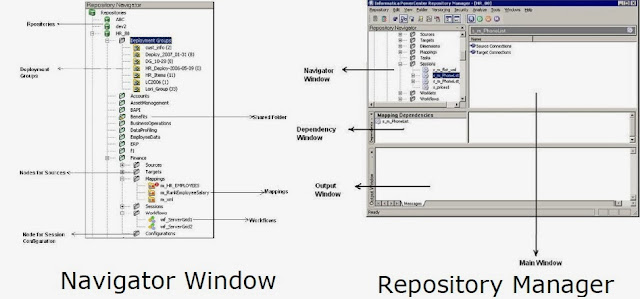
  1. PowerCenter Admin Console: The repository is administered using the Repository Manager client tool, the PowerCenter Administration Console, and command line programs.
  2. PowerCenter Repository Manager: To create Users,Groups,Folders and assign privileges.
  3. PowerCenter Designer: To create/import sources,targets and to create mappings,mapplets,re-usable transformations.
    PowerCenter Designer internally will have the following components.
    Source Analyzer - To create or Import Sources.
    Target Designer - To Create or Import Targets.
    Transformation Developer - To Create Re-usable transformations.
    Mapplet Designer - To create Mapplets
  4. Mapplet  is a set of transformations(excluding source and target) which are re-usable across mappings.
    Mapping Designer - To create Mappings.
    Mapping is a set of transformations(including source and target) which will transform the data as per business requirements.
  5. PowerCenter Workflow Manager: To create, schedule, and run workflows,tasks.In the Workflow Manager, we define a set of instructions called a workflow to execute mappings we build in the designer.
    PowerCenter Workflow Manager internally will have the following components.
    Task Developer - To Create Re-Usable Tasks.
    Worklet Designer - To create worklets.
    Worklet is a  set of Re-usable tasks.
    Workflow Designer - To create workflows.
    Workflow is a set of instructions that describes how and when to run tasks related to extracting, transforming, and loading data.
    Tasks are different types of jobs available like Session, Command Task, Email etc..

  6. PowerCenter Workflow Monitor: To monitor workflows and tasks.You can view details about a workflow or task in either Gantt Chart view or Task view.You can run, stop, abort, and resume workflows from the Workflow Monitor.

Comments

  1. Really nice blog post.provided a helpful information.I hope that you will post more updates like this Informatica Online Course Bangalore

    ReplyDelete

Post a Comment

Popular posts from this blog

Comparing Objects in Informatica

We might face a scenario where there may be difference between PRODUCTION v/s SIT version of code or any environment or between different folders in same environment. In here we go for comparison of objects we can compare between mappings,sessions,workflows In Designer it would be present under "Mappings" tab we can find "Compare" option. In workflow manger under "Tasks & Workfows" tab we can find "Compare" option for tasks and workflows comparison respectively. However the easiest and probably the best practice would be by doing using Repository Manager.In Repository Manager under "Edit" tab we can find "Compare" option. The advantage of using Repository manager it compares all the objects at one go i.e. workflow,session and mapping. Hence reducing the effort of individually checking the mapping and session separately. Once we select the folder and corresponding workflow we Can click compare for checking out ...
Types of Joins in Oracle/Teradata

In Data warehousing, irrespective of schema (snow flake schema or star schema) we are using, we should join dimension and fact tables to analyze the business. Below are the frequently used joins: Inner join Left outer Join Right outer Join Cross join Inner Join: Inner join will give you the matching rows from both the tables. If the join condition is not matching then zero records will return. We should use ON keyword to give join condition. Example: Table1: ID Name 1 Krishna 2 Anirudh 4 Ashok Table2: ID Location 1 Bangalore 3 Chennai 4 Chennai We can join above two tables using inner join based on key column ID. SELECT T1.ID, T1.Name, T2.Location FROM Table1 T1 INNER JOIN Table2 T2 ON T1.ID = T2.ID     If we are using inner join, it will give us matching rows from both the table. Here in this example, we have 2 matching rows i.e. ID 1 and 4. Below will be the result set for the above exa...

Target Load Type - Normal or Bulk in Session Properties

We can see the Target load type ( Normal or Bulk) property in session under Mapping tab and we will go for Bulk to improve the performance of session to load large amount of data. SQL loader utility will be used for Bulk load and it will not create any database logs(redolog and undolog), it directly writes to data file.Transaction can not be rolled back as we don't have database logs.However,Bulk loading is very as compared to Normal loading. In target if you are using Primary Key or Primary Index or any constraints you can't use Bulk mode. We can see this property in the below snap shot.